Reformatting Windows XP - What is reformatting, and how to do it...
After a while of using your computer and a couple of years have gone past, your computer may be eventually becoming sluggish, unresponsive, showing errors, or maybe not even booting/starting up. There is a way to fix this without having to buy a new computer, or paying someone to do it for you. If you follow these instructions, reformatting can be a peice of cake.
What you need to know before you start.
Reformmating your Windows XP computer will erase everything on your hard drive and reinstall the operating system. To avoid losing you data (documents, pictures, music etc.), you will want to backup your information prior to reformatting. After you have reformatted your computer, you will need to also reinstall all of your personal data, as well as any software products you may use. (For example; Microsoft Office, iTunes, Symantec Norton Internet Security etc.)
PLEASE NOTE: If you have a network connection, please unplug from the network connection BEFORE starting installation. Also unplug any other external devices - USB Drives, Media Drives etc.
To reformat Windows XP you will need a Windows XP Home or Pro Edition CD.
1. Make sure your computer is setup to boot from the CD To find out if your computer boots from the cd, insert the Windows XP cd and restart your computer. If the image below appears when the computer is rebooted with the cd in the drive, you do not need to change any settings. If it does not appear you will have to change some settings. (These settings are in the BIOS - Please check with your manufacturer on how to change the setting).
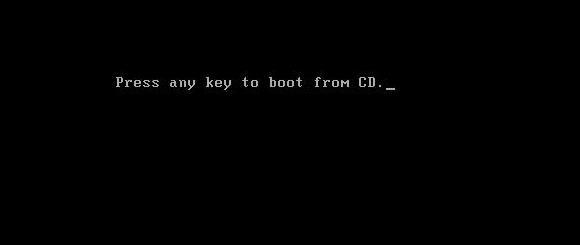
2. With the XP cd in the computer, start the computer and Press any key when the image above appears. It should say " Press any key to boot from CD."
3. After installing the neccessary setup files, Windows XP will display your partitons. (As displayed below)
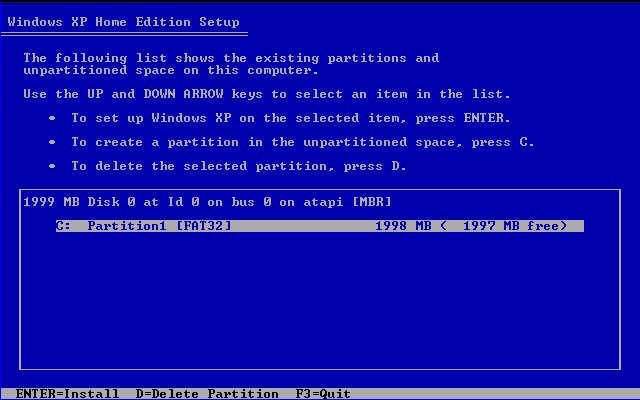
4. Delete any existing partitions by selecting the desired partition with the arrow keys, Press D to delete and L to confirm deletion. Screeshot .
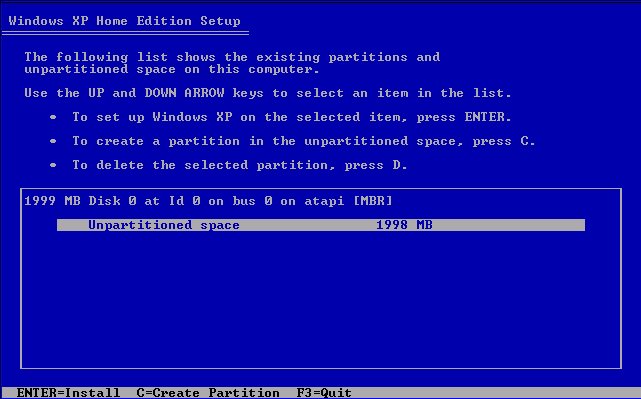
5. You should now have only one option, "Unpartitioned Space" (like the screenshot above). Press Enter to install Windows XP to the unpartitioned space.
6. When asked how you would like to format the partition, select "Format using the NTFS file system". (As displayed below)
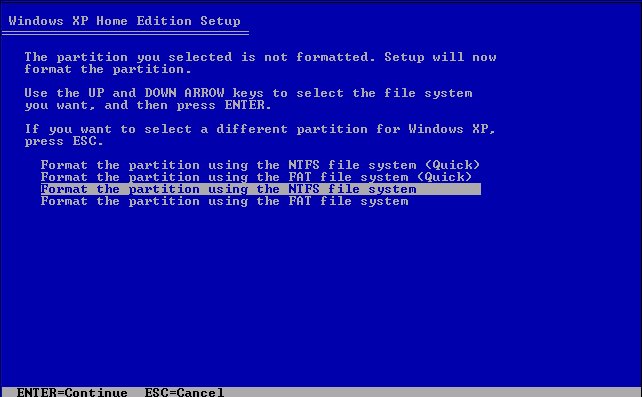
7. After the partition is formatted, Windows XP will begin installation. The computer will reboot. While the computer is rebooting, please do not touch any keys. From now on the screens will look like the following:

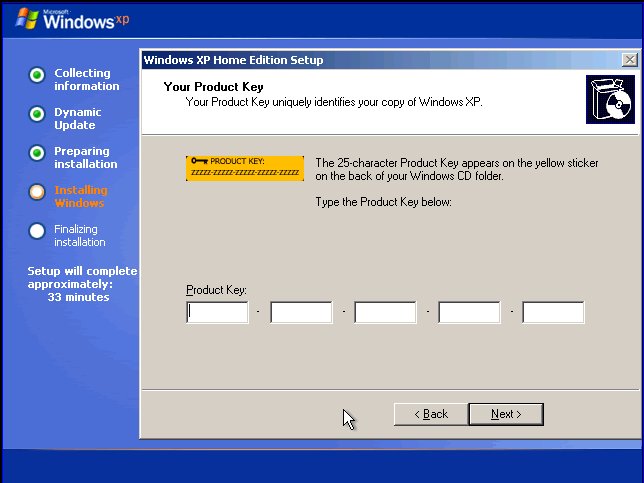
8. A screen should come up (screen is displayed below) prompting you to enter your product key. If you purchased Windows XP with a little booklet that explains Windows XP, the product key will be located on the back of the sleeve your CD came in. If you are reformatting using a Windows XP CD that came with your computer, the product key may be located on a sticker somewhere on your computer case.
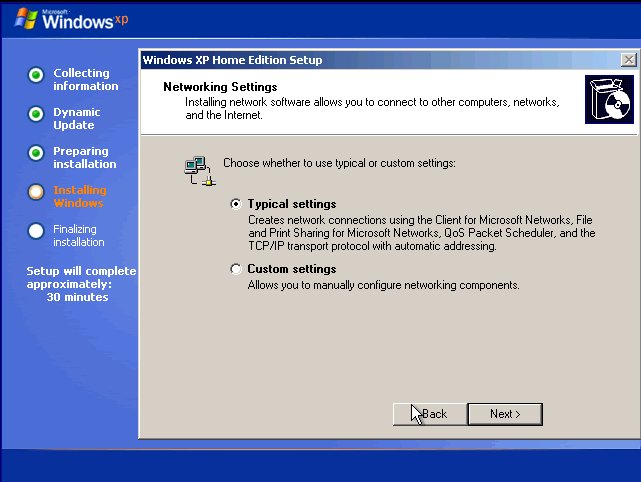
9. When asked for network settings choose "Typical Settings" as displayed below.
10.Windows XP will now complete installation. Upon completion you will need to re-install the drivers for your hardware (Modem, Sound, Video, etc). You can download current drivers from many manufacturer's support web sites by entering your computer type & model.
11. Reconnect your pc to the network & connect to the internet.
12. Run Windows Update by opening Internet Explorer, then clicking on Tools -> Windows Update. Follow the on-screen instructions for installing all updates.
13. Last but not least, reinstall all your programs (Office, iTunes etc.) and restore all your Documents, music etc.
Done. You have completed reinstalling Windows XP, and have a new and fresh computer – No more sluggishness, or errors!!!